
Passkeys
Use passkeys to create and sign in to Control D accounts without a password.
Passkeys let you create and sign in to a Control D account without typing a password. A passkey is created and stored by your device, browser, password manager, or security key, then used to prove it is you when you log in.
Control D does not receive your device PIN, fingerprint, face scan, or other local unlock method. Your device or passkey provider handles that part.
When you can use a passkey
You can use a passkey to:
- Create a new Personal account.
- Create a new Organization account.
- Accept an Organization member invite and create your account directly from the invite.
- Log in to an existing account.
- Add, rename, or delete passkeys from your Account preferences.
- Enable Passkey Enforced sign-in after adding at least one passkey.
Requirements
Passkeys require a browser and device that support WebAuthn/passkeys. Most current browsers support passkeys, but availability depends on your device, browser, operating system, and passkey provider.
Examples of passkey providers include built-in platform passkeys, password managers, and hardware security keys. If your browser says passkeys are not available, use another supported browser/device or create the account with a password instead.
Create a new account with a passkey
When creating a new account, enter your email address and choose Use a passkey instead of a password.
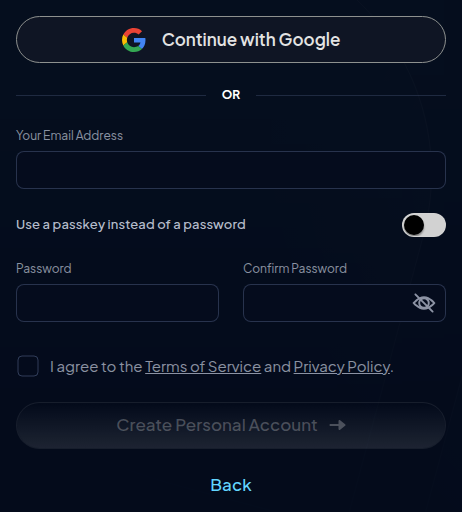
Follow your browser or device prompt to create the passkey. Depending on your setup, this may ask you to unlock your device, choose a password manager, scan a QR code, or use a security key.
After the passkey is created, Control D creates your account and signs you in.
Join an Organization with a passkey
If you receive an Organization member invite, you can join with a passkey immediately. You do not need to create a username/password account first.
Open the invite link, choose Use a passkey instead of a password, and follow the browser or device prompt. The invite email address is used for the account being added to the Organization.
Log in with a passkey
On the login page, choose Passkey and follow the browser or device prompt.
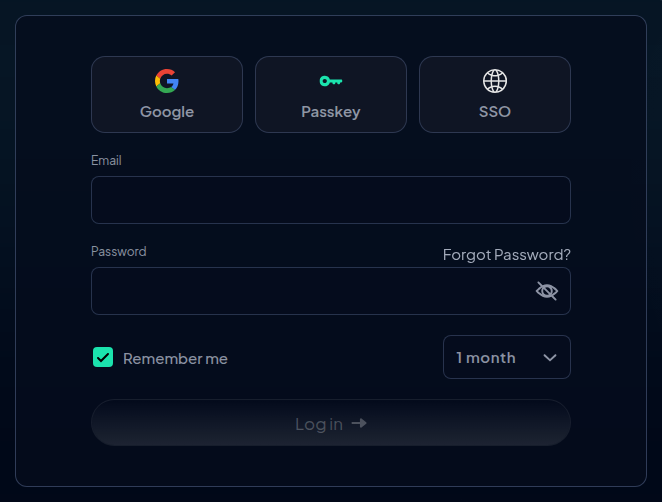
If you have multiple passkeys or multiple passkey providers, your browser may ask which one to use. Pick the passkey that belongs to your Control D account.
Manage passkeys
You can manage passkeys from the Account area of the Control D dashboard.
From there you can:
- Add a passkey - useful when setting up a new device, password manager, or security key.
- Rename a passkey - use names like
Laptop,Phone, orSecurity Keyso you can recognize them later. - Delete a passkey - remove old devices or passkeys you no longer use.
We recommend adding more than one passkey before relying on passkeys as your only sign-in method. That way, losing one device does not lock you out of your account.
If your account does not have a usable password or SSO login, Control D will not let you delete your last remaining passkey. This prevents you from removing your only sign-in method.
Passkey Enforced sign-in
After you add at least one passkey, you can enable Passkey Enforced sign-in.
When Passkey Enforced is enabled:
- You must sign in with a passkey.
- Password login is disabled for the account.
- Passkey sign-in replaces the normal password + 2FA sign-in flow.
- You should keep at least one backup passkey available.
Important: Password reset does not restore access to a Passkey Enforced account. You may be able to reset or set a password, but you still will not be able to sign in with that password while Passkey Enforced is enabled. If you lose access to all enrolled passkeys, contact support.
Passkeys and 2FA
Passkeys are treated as a passwordless sign-in method. When you sign in with a passkey, Control D does not ask for your normal 2FA code.
If your Organization requires 2FA, follow your Organization's sign-in policy. If you are unsure whether passkeys are appropriate for your Organization, ask the Organization owner or admin before enabling Passkey Enforced sign-in.
Troubleshooting
Passkeys are not available in this browser
Your current browser, device, or environment may not support passkeys. Try a current browser on a device that supports passkeys, or use password signup/login instead.
The browser prompt was cancelled or blocked
Start the passkey step again and keep the browser window open until the passkey prompt finishes. Browser extensions, privacy settings, or cross-device prompts can sometimes block or interrupt the ceremony.
This passkey is not recognized
Make sure you are using the passkey that belongs to your Control D account. If you use more than one password manager, browser profile, device, or security key, check that you selected the correct one.
I lost access to my passkey
Use another enrolled passkey if you have one. If your account also has password or SSO sign-in available and Passkey Enforced is not enabled, use that method and add a new passkey from Account preferences.
If Passkey Enforced is enabled and you no longer have access to any enrolled passkeys, password reset will not get you back in. Contact support for help.
Updated 4 months ago